According to the latest MessageLabs Intelligence Report on spam from Symantec “Spam has reached its highest level in years”. In particular spam levels are at their worst in France, Germany and the Netherlands, where they have reached 95 percent.
MessageLabs researchers claim that percentages are so high because spammers are using automated translation services and templates to enable multiple language spam runs.
“Globally, the majority of spam is in English, and in July around 5%, or 1 in every 20 spam messages, was in non-English language”.
Monthly Archive for August, 2009
Today we’d like to focus on a simple but effective way to filter addresses of your list. In SendBlaster it’s possible to send a message to a subgroup of addresses in the list temporarily activating/deactivating one or more items, without having to unsubscribe them. By combining this feature and the sorting/grouping functionalities you will be able to create powerful filtering to be applied to mailing processes.
Let’s clear some things up. If a “City” field is defined you can send a message only to those that live in a specific city, temporarily disabling all other addresses. If a “Job” field is defined you’ll be able to send a message only to certain professional categories (it will also be possible to combine these 2 filters using the grouping functionality: the addresses will be grouped by “City” first and then by “Job”).
It may happen to deal with big mailing lists that contain duplicate addresses.
Don’t worry! SendBlaster automatically searches for duplicates and fixes them.
And no action is required! Duplicates in the same mailing list are automatically filtered out when sending, even if you have disabled the Don’t add addresses when duplicated or already present in the list option during your import operations.
We consider it an extremely effective and hassle-free tool. You’ll never annoy your recipients with doubles and, of course, you may improve the performance of your campaigns…instantly!
How could you make sure your HTML messages are well displayed by your recipients?
A good habit is to send out a test email to a couple of test addresses. Let’s see how to do it!
First, you need to create some test accounts at the most popular email services, such as Yahoo! Mail, AOL, Microsoft Live and Google Gmail.
Configure them in different desktop email clients, e.g. Outlook 2007, Eudora, Windows Mail.
Open SendBlaster. Create a new list, name it “TESTLIST” . Now add the test addresses you previously created to “TESTLIST”.
Compose/import your html message and send it to “TESTLIST”. Wait for some seconds and check your email accounts. You will be able to see how your email looks in different web based and desktop email clients.
Today we focus on a particular feature of SendBlaster that could be more useful than you think! We’re talking about partial deliveries and how to resume them.
Do you know that every time you start sending emails you can stop them manually (clicking the ‘Abort’ button during the sending operation) and then resume them in a single click?
Actually this is a simple and effective way to work around SMTP server restrictions applied for controlling automated spam messages. The average SMTP service, which usually comes bundled with your Internet connection might limit the maximum number of recipients per message or maximum number of messages per server connection, and may vary from time to time depending on server load and other factors.
For example if you use a SMTP server that does not allow sending more than 50 messages per hour and a distribution list with 100 email addresses, only the first half will go through during the first attempt. In this case the operation can be completed after a one-hour wait right from the History windows.
Let’s see how to use this cool feature:
Continue reading ‘How to complete previous mailings…and work around SMTP server restrictions’
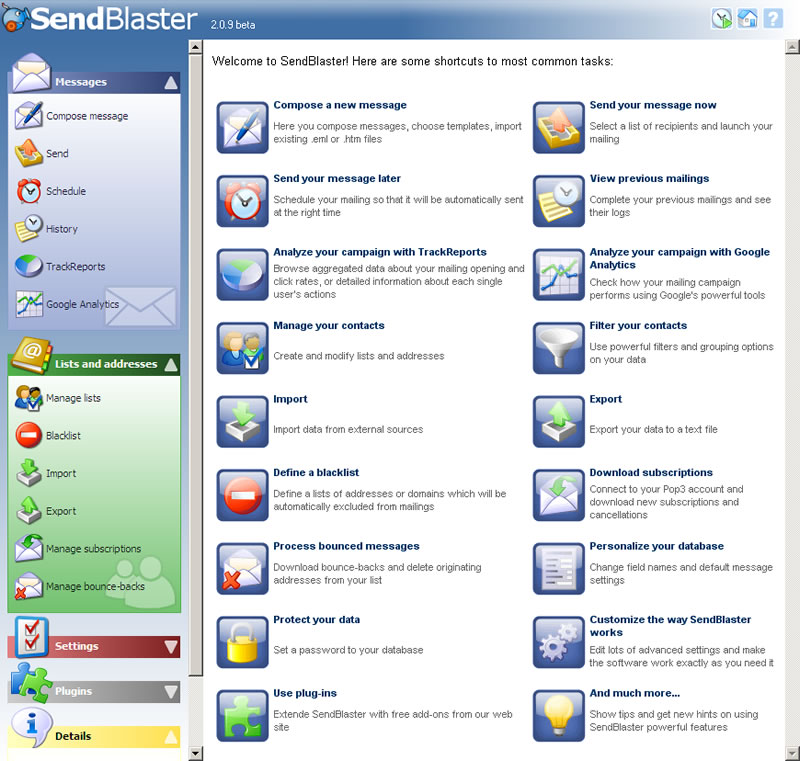
We’ve recently announced that SendBlaster 2 will be available soon.
It will include many exciting new features based on users requests, that will help you to manage your email marketing campaigns better than ever.
For the first time we are going to reveal them!
With the SendBlaster 2.0 release will come a whole host of excellent new features, such as:
- Insert unsubscribe link
SendBlaster 2 has a button in the compose message to add a customize unsibscribe link inside the message (as required by the CAN-SPAM Act). - Run in Schedule mode
You may schedule messages to be sent in the future. - Spam check
SendBlaster now integrates the “Spam check” tool. It incorporates all the SpamAssassin rules that you need to respect to go straight to your customer’s inbox. - Google Analytics tools
SendBlaster + Google Analytics! It means that you may measure the effectiveness of your email marketing campaigns. Easily and for free.