website

Monthly Archive for February, 2010

Microsoft Outlook: Spam Words To Avoid In Your Emails
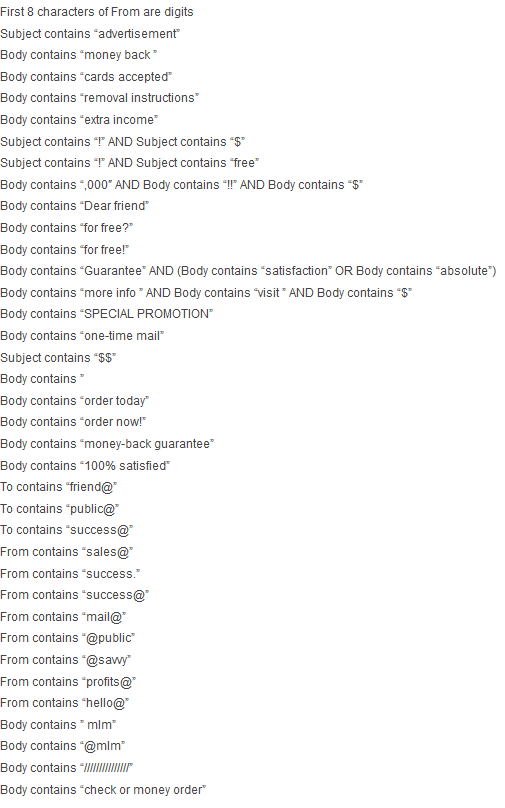
Occasionally, Microsoft updates the list of key words and phrases that will trigger rejection by their spam filters. It means that if you do not pay attention to them, your emails will automatically go into the recipient’s Junk folder. As a result, your email deliverability may decrease.
Here are the current words and phrases.

First 8 characters of From are digits
Subject contains “advertisement”
Body contains “money back ”
Body contains “cards accepted”
Body contains “removal instructions”
Body contains “extra income”
Subject contains “!” AND Subject contains “$”
Subject contains “!” AND Subject contains “free”
Body contains “,000″ AND Body contains “!!” AND Body contains “$”
Body contains “Dear friend”
Continue reading ‘Microsoft Outlook: Spam Words To Avoid In Your Emails’

How To Configure SendBlaster With The Right Advanced Settings

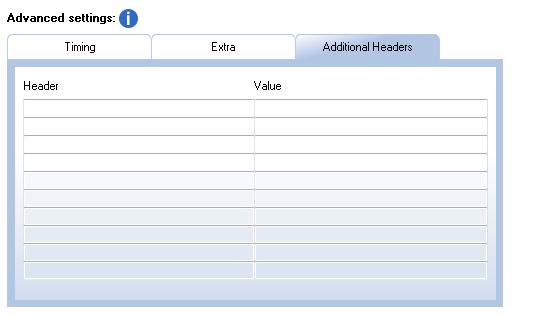
Today we focus our attention on the Advanced Settings section in SendBlaster, which allows users to fine-tune the sending timing, and other special settings. Obviously, to get the right advanced settings it is necessary to try out different combinations and verify how many messages actually get delivered. To simplify the settings, some Suggested settings are available. Please consider that they might not be optimized for your connection but they can be considered a good starting point to find out the best configuration.
Users connected to a “tolerant” enough SMTP server will probably not experience many problems, regardless of the settings specified that will only affect the sending speed.
On the other hand, if your connection is to a rather “strict” STMP server and if a large number of messages need delivered, it may be necessary to slow down message sending to avoid sending messages simultaneously.
Here are a few simple rules to consider:

  • A tolerant SMTP server allows fast sending without any, or with only limited, pauses. On restricted SMTP servers that use multiple anti-spam filters, more pauses and fewer simultaneous connections should be used.
  • SMTP servers do not usually allow the simultaneous sending of many messages. Therefore when sending in SMTP mode the number of connections must be low or, in certain situations, equal to 1 (no simultaneous connections). If the SMTP server is equipped with anti-spam restriction mechanisms, it may be necessary to slow down message sending by setting a pause of a few seconds between each send, and by setting a longer pause between message blocks. Blocks should not contain more than a few dozen messages.
  • In the case of a Direct Send, with a standard distribution list containing addresses belonging to different domains, the messages will be delivered to a variety of different servers. It is therefore possible to set a high number of connections* and limited or no pauses between messages and between blocks.
  • Continue reading ‘How To Configure SendBlaster With The Right Advanced Settings’

Offline Email Marketing Ideas To Expand Your Email List

email marketingAs stated previously, your in-house email list – the list with subscribers to your web site – gives the best results in terms of opens, clicks and conversions.
Today we’d like to provide some tips on how to expand your list of email addresses through some offline actions.
The first aspect to bear in mind is identifying the right sources to acquire new clients. These sources will obviously be different according to yourtype of business.
Below are some examples.

  • In all direct mailing actions you should inform your clients the option to subscribe to your newsletter, highlighting the various benefits.
  • Create postcards or greeting cards and distribute these freely in places frequented by potential clients.
  • On occasions such as meetings, seminars and tradeshows, focus on building new relationships! More encourage business card exchange, for example handing out small gifts. Remember to send a follow-up email, immediately after this event, to all your new contacts thanking them for their interest.
  • Continue reading ‘Offline Email Marketing Ideas To Expand Your Email List’

Rich Media/Flash in Emails: Not (yet) A Good Choice

What about incorporating rich video or audio content directly in your emails?  New technologies, like CertifiedVideo from Goodmail, allow marketers to send videos and avoid issues with spam filters. More, HTML5 ha arrived with its new <video> tag that was created to provide native video support using a single codec across all browsers without the need for third party plugins like Flash.  These are new interesting developments that we should take into consideration.

To this day, Flash and other rich media are not supported in many email clients. And even with email clients that do support rich media your subscribers may not yet be ready to receive this new technology via email.

That’s why, we suggest  not to embed videos into your HTML emails. A good alternative is to post them on your website and link to them  from your email. If you want to report a video from YouTube or other video sharing sites, just create a screenshot of the video player in action, insert that image into your email, and link it to your actual post/page.

Finally, if you want to add some animation to your emails, use an animated GIF instead.  There are some cool tools what let you easily convert your video into an animated gif, so that the “video” will play in all email clients except Outlook 2007, which only displays the first frame.

FREE Valentine’s Day HTML Email Templates

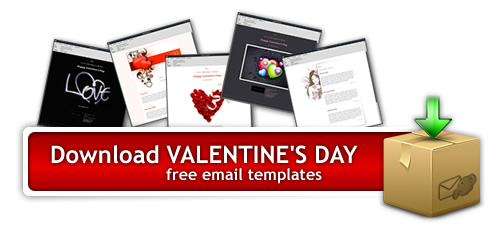
Are you ready to spread a little love (and some promotions) to your subscribers? It’s Valentine’s Day again, another important holiday that you should definitely include in your email marketing strategy (according to recent statistics, Valentine’s Day is the second-biggest card-giving day after Xmas!).
To help you make it easier, we’ve just rolled out some lovely HTML email templates, that you can grab and easily edit, e.g. adding your logo, your signature and other elements. You just need to download Sendblaster (FREE edition is fine too), then choose an email template, edit your greeting message and send it.

Download Valentine's Day Email Templates

How to use our Valentine’s Day HTML email templates:

  • Download Valentine’s Day email template pack (zip)
  • Extract  and copy .eml files in C:/Documents/SendBlaster2/Template
    (in C:/Programs/Sendblaster/Template for SendBlaster 1.x versions)
  • Open SendBlaster (or download a free copy)
  • Select “Compose message”
  • Click on “Choose template”
  • Choose your favorite Valentine’s Day email template
  • Compose your personalized message

..and finally send your custom e-card out to your recipients!

What’s new on SB2 – SendBlaster Plugins

SendBlaster Plugins

SendBlaster 2 comes with dozens of enhancements and new features. In today’s post, we’d like to focus on SendBlaster Plugins.
We can define them as small external utilities that can be launched from inside SendBlaster’s user interface, in order to add new features to the program.  In other words, they represent an endless opportunity to customize and enhance SendBlaster in a very simple manner.

The first SendBlaster plugin, already available in SB2, is named  “Advanced HTML Editor“. It’s an additional HTML editor that supports DOM and CSS, it allows working with tables and editing many objects and properties.

In order to install it :

1. Go to “Advanced Settings” panel
2. Click on “More plugins” in the “Plugins” section: SendBlaster Plugins page will open on a new page.
3. Click on “Install”  button
4. Confirm it (run the .msi file)
5. Restart SendBlaster.

Please note that you can enable or disable any plugin from SendBlaster’s “Advanced Settings” panel. In order to completely remove a plugin, you must uninstall it from Windows Control Panel.

This is just the beginning though, expect many more SendBlaster plugins in the futureTheir API are public and third party developers will be encouraged to create new, useful plugins.

8 Tips To Enhance Your Experience with SendBlaster

Helpful tips for getting started with SendBlasterWanna learn some more about SendBlaster? Here are 8 simple but useful tips to get started.

1 – In order to improve your delivery rate and avoid false positives from antispam filters, always insert a “plain text” part in your message; SendBlaster can automatically generate a plain text part from HTML when you click on “Text from HTML” button. This should be the last operation you perform before sending out a mailing.

2 – SendBlaster’s speed greatly depends on your Internet connection and SMTP server performance: if you are unsure about how fast messages can be sent, start with slower settings (select a slow profile in “Send” form), then gradually increase speed (choose a faster profile or lower pauses and increase connections).

Continue reading ’8 Tips To Enhance Your Experience with SendBlaster’


Load Times Plugin made by Cheap Web Hosting