website

Tag Archive for 'outlook'

Microsoft Outlook: Spam Words To Avoid In Your Emails

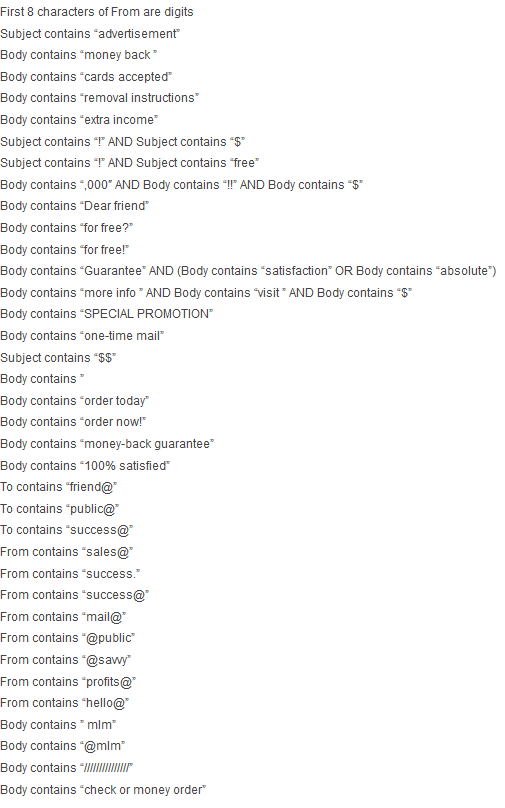
Occasionally, Microsoft updates the list of key words and phrases that will trigger rejection by their spam filters. It means that if you do not pay attention to them, your emails will automatically go into the recipient’s Junk folder. As a result, your email deliverability may decrease.
Here are the current words and phrases.

First 8 characters of From are digits
Subject contains “advertisement”
Body contains “money back ”
Body contains “cards accepted”
Body contains “removal instructions”
Body contains “extra income”
Subject contains “!” AND Subject contains “$”
Subject contains “!” AND Subject contains “free”
Body contains “,000″ AND Body contains “!!” AND Body contains “$”
Body contains “Dear friend”
Continue reading ‘Microsoft Outlook: Spam Words To Avoid In Your Emails’

How to Import Contacts from CSV into SendBlaster

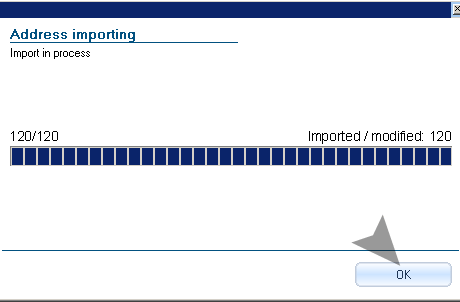
SendBlaster makes it easy to import your mailing list email addresses and contacts.  In this post we’ll explain how to do it. Easy and Hassle-free guaranteed!

Step 1. Exporting your contacts from your mail account  into CSV file format.
To import your contacts into SendBlaster you need to export a .csv/.txt file (one record, on each row, fields separated by comma, semicolon or tab) from your mail account, and then import it into SendBlaster.

From MSN Hotmail / Live:

  • Login to your account and go to Contact list.
  • Click Manage and Export.
  • Enter the CAPTCHA code and click Export
  • You will get a CSV file downloaded which has all your contacts.

From Yahoo!:

  • Open Yahoo! webmail in you browser
  • Switch to classic view
  • Go to Import/Export section
  • Click on Export Now button near Microsoft Outlook label
  • This will open a new popup window asking for file save on your hard disk.
  • Hit Save File.

From Gmail:

  • Login to your Gmail account
  • Click on Contacts at the left side
  • Scroll down and click on Export
  • Select the contacts you want to export
  • Select the file format – Outlook’s CSV format
  • Hit Export Button: this will open a new window asking you either to open or save the file.
  • Hit  Save File.

Continue reading ‘How to Import Contacts from CSV into SendBlaster’


Load Times Plugin made by Cheap Web Hosting