If you want to create or edit clean html emails be sure to choose the correct web authoring tools. For example, it is not a good idea to use word processors like MS Word. Emails may look good for your eyes but the output will be poorly formatted and incompatible with different email clients. This is the reason why you should opt for a good HTML editor!
Most popular ones are Adobe Dreamweaver (our favorite!) and Microsoft Front Page. Besides these paid softwares, there are a number of free open source alternatives that can help you even if you have no HTML knowledge. At no cost!
The following is a list of 100% free WYSIWYG (What You See Is What You Get) HTML editors with a pretty good reputation.
Check out these free alternatives:
Free Software Desktop WYSIWYG Editors
KompoZer
KompoZer is a complete Web Authoring System that combines web file management and easy-to-use WYSIWYG web page editing capabilities found in Microsoft FrontPage, Adobe DreamWeaver and other high end programs.
Kompozer is super-fast, and very reliable, in part because it is based on Gecko, the layout engine from Mozilla.
Social networking websites have revolutionized the way people interact online. Consumers are spending increasing amounts of time on these sites, want to share more and more information, opinions, valuable content. According to some reports the rise of social media may represent a threat for email marketing. Actually, they should be considered a great opportunity to enhance its effectiveness.
How to fill this gap? The first (and simplest) step to take is creating links between social media and email to provide more ways for people to share.
By following these instructions you can integrate the three most popular social networks (Facebook, Twitter, Linkedin) into your email campaigns and start giving people multiple ways to interact.
FACEBOOK
Facebook can be easily integrated to your emails by adding the following “share” url: http://www.facebook.com/share.php?u=url
Make sure to replace “url” with the web link you want to share.
e.g. http://www.facebook.com/share.php?u=http://blog.sendblaster.com
By clicking on this link, your subscribers will see a preview of your article on Facebook and will be able to choose whether to post it to their wall or send it as a direct message.
When posting to their personal profiles, your article will automatically show up in the wall of their friends, which can leave a comment or visit the link.
With a single line of html code you can gain more visibility to your content and reach a larger audience.
According to MarketingSherpa’s 2010 Email Marketing Benchmark Report, only 33% of email users say they have images turned on by default in their email clients.
This means that if you do not consider optimizing email when images are turned off, a large majority of your subscribers will not see your message properly and, as a consequence, they may simply refuse to read it or even to open it.
Obviously, it is not possible to prevent image suppression in every email client but you can still improve how your emails render even with images blocked by using a simple and inexpensive work-around: the alt-text tag.
Adding alt text is really simple, simply specify alt=”your text” inside the <img alt=”" /> tag:
e.g. <img src=”special_offer.gif” alt=”Buy now! Save $100″ />
Be Relevant – Make sure to add only well-written and relevant ALT Tags so that your readers can easily “preview” the actual email content before images are loaded. Always use them – Remember to add them on all images (logo, banners, phographs) included in your html email. Obviously, it is not necessary to use them on purely decorative images (for ex. bullets). Use captions with ALT tags – Some email applications, e.g Windows Live Hotmail and Yahoo! Mail, will not even display the ALT tags in the preview pane. Consider using captions (in HTML text) in addition to ALT tags. Design with images off – To avoid these issues related to blocked images design your message with images off, so you know exactly if email content makes sense even without images.
All SendBlaster 2 users are able to schedule their mailings to be sent out at specific dates. It is a very simple operation that allows improving your email marketing activities.
Here are the key steps to follow:
Open SendBlaster (v.2)
Click on the ‘Compose Message’ panel
Edit your message
Click on ‘Send panel’
Make sure all your settings are correct
Click on ‘Send Later…’
Choose a Title for your scheduled mailing
Select a date a time you want to be sent, then ‘Ok’
Click on ‘Run in schedule Mode’ in the pop up window
Well done! Your mailing will be sent at the date and time you selected.
We have also prepared a short video tutorial that demostrates how to schedule your mailings to start a specific date and time …in just 1 minute!
In the ‘Schedule’ panel you can schedule current mailing operation (button New), change schedule date for the selected scheduled mailing operation (Edit date), preview the selected scheduled message (E-mail preview), start the selected mailing operation (Send Now), or delete one or more mailing operations (Delete).
Mailings can also be “parked”: it means that they are ready for being sent, but they will not be automatically launched. You will be able to manually launch it at a later date.
Finally, keep in mind that scheduled mailings are only launched when SendBlaster is in “Schedule mode”, in other words when it’s minimized in the tray area.
No mailings, even if the scheduled time has elapsed, will be automatically launched if the software is in “normal” mode.
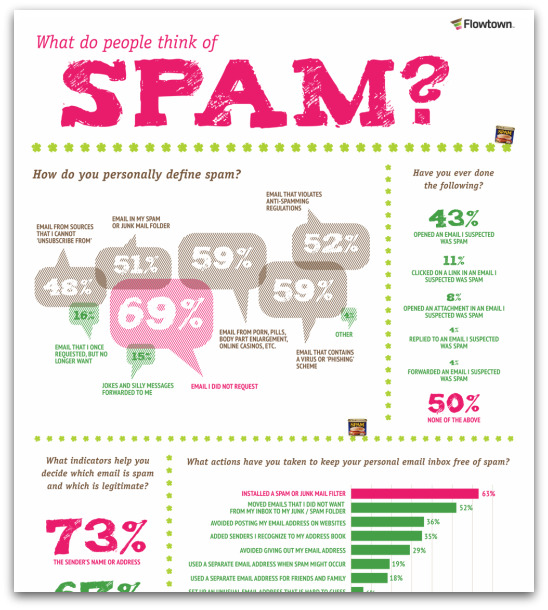
The folks at Flowtown put together this awesome infographic detailing a variety of stats around people’s perceptions of spam. Click on the image to view the full-sized version.
The data for the infographic comes from the: Ipsos Public Affairs 2010 MAAWG (Messaging Anti-Abuse Working Group ) E-Mail Security Awareness and Usage Report.
You can access a summary of the surey report data used in here. [pdf]